10 Report Generation
The Report Generation feature allows users to create and download customized reports based on the analysis results. This guide outlines the steps for selecting a format, generating, and downloading a report using the interface.
10.1 Steps to Generate a Report
10.1.1 Open the Download Options Dialog
- Navigate to the relevant analysis section (e.g., National Coverage).
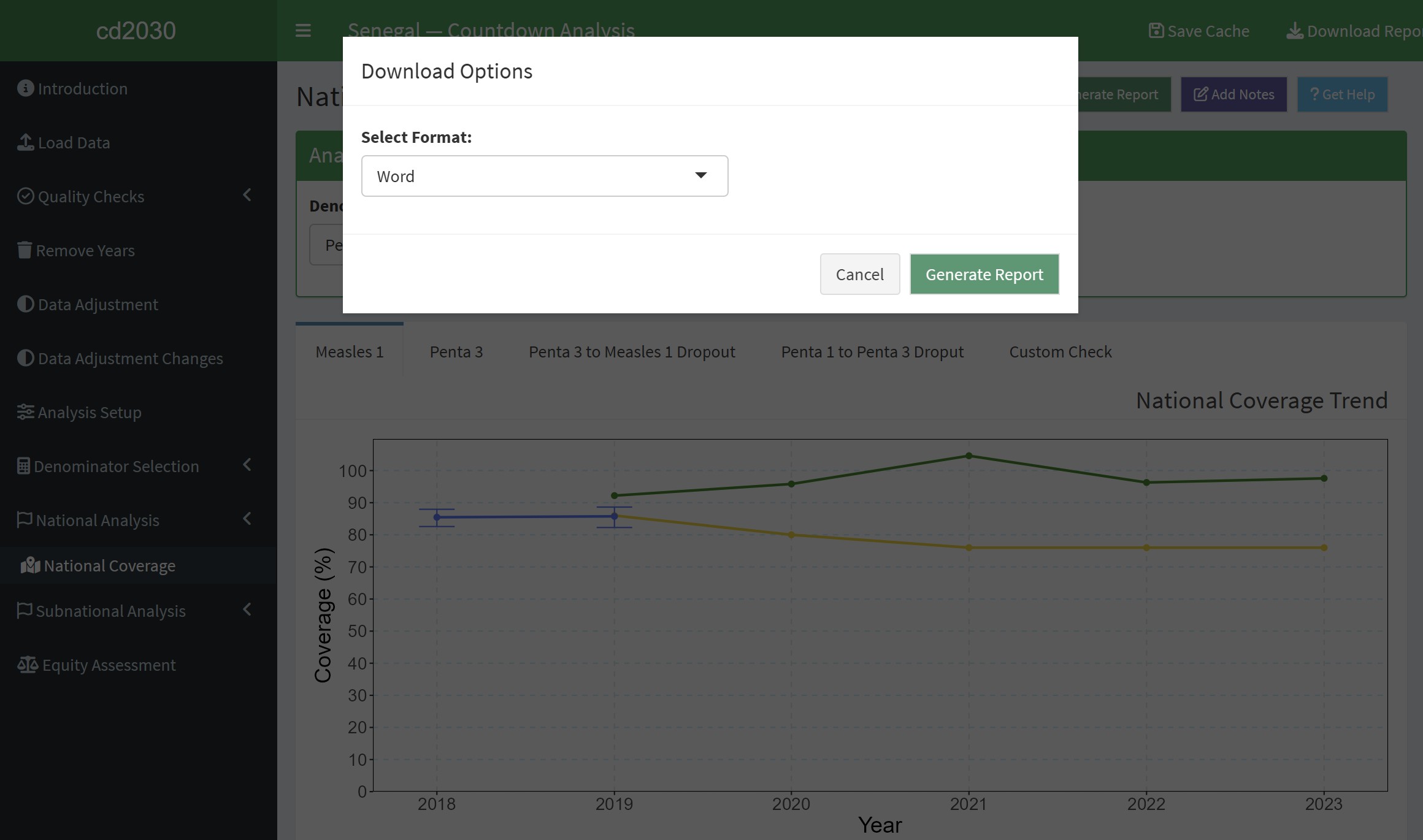
- Click the “Generate Report” button to open the Download Options dialog.
10.1.2 Select the Report Format
- In the dialog, choose a report format from the dropdown menu:
- Options include Word or PDF formats.
- Once the desired format is selected, proceed to the next step.
10.1.3 Generate the Report
- Click the “Generate Report” button to initiate the report creation process.
- A loading screen will appear.
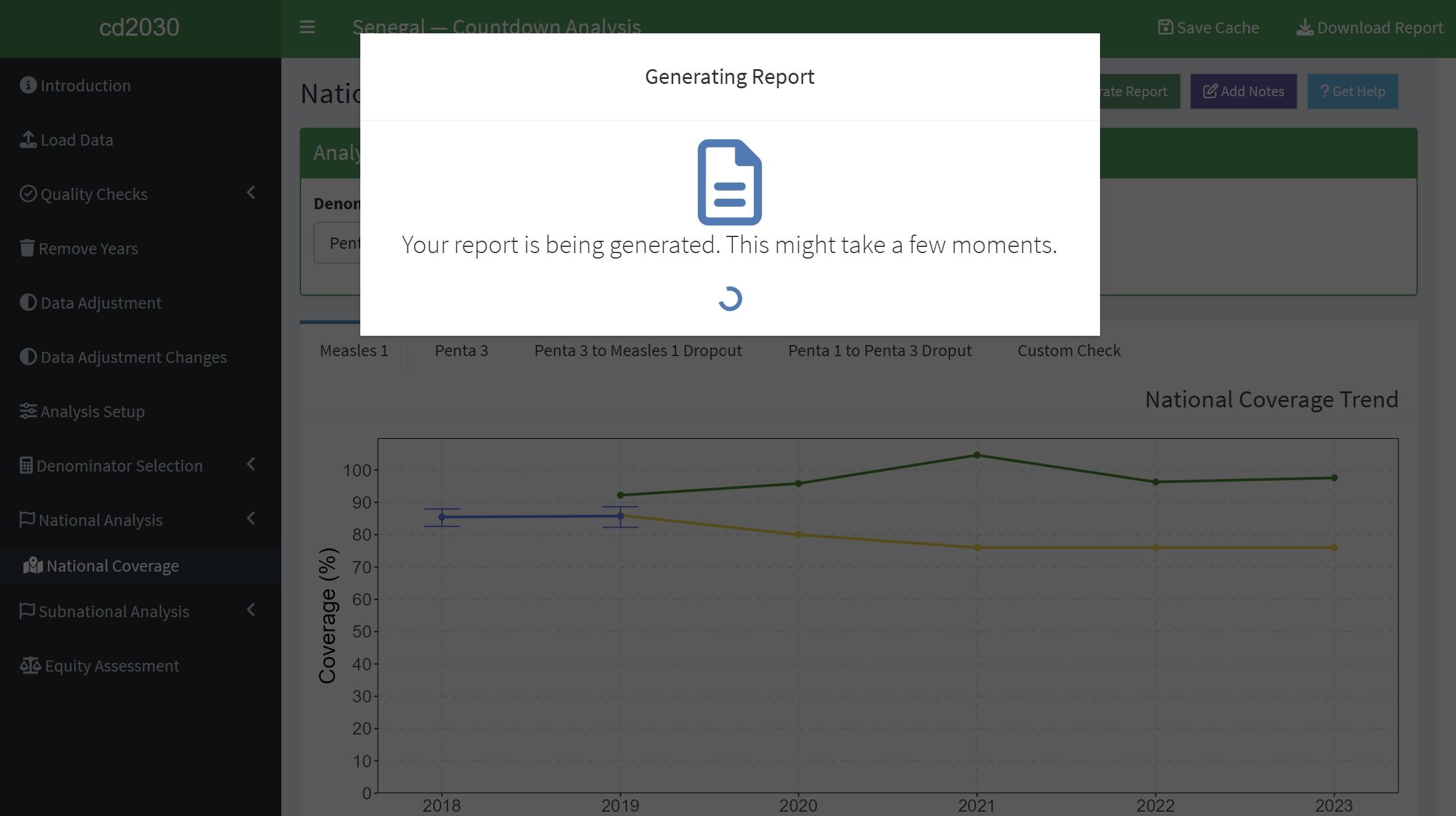
- Wait for the process to complete. Do not close the dialog during this step.
10.1.4 Download the Report
- Once the report is successfully generated, a confirmation screen will appear.
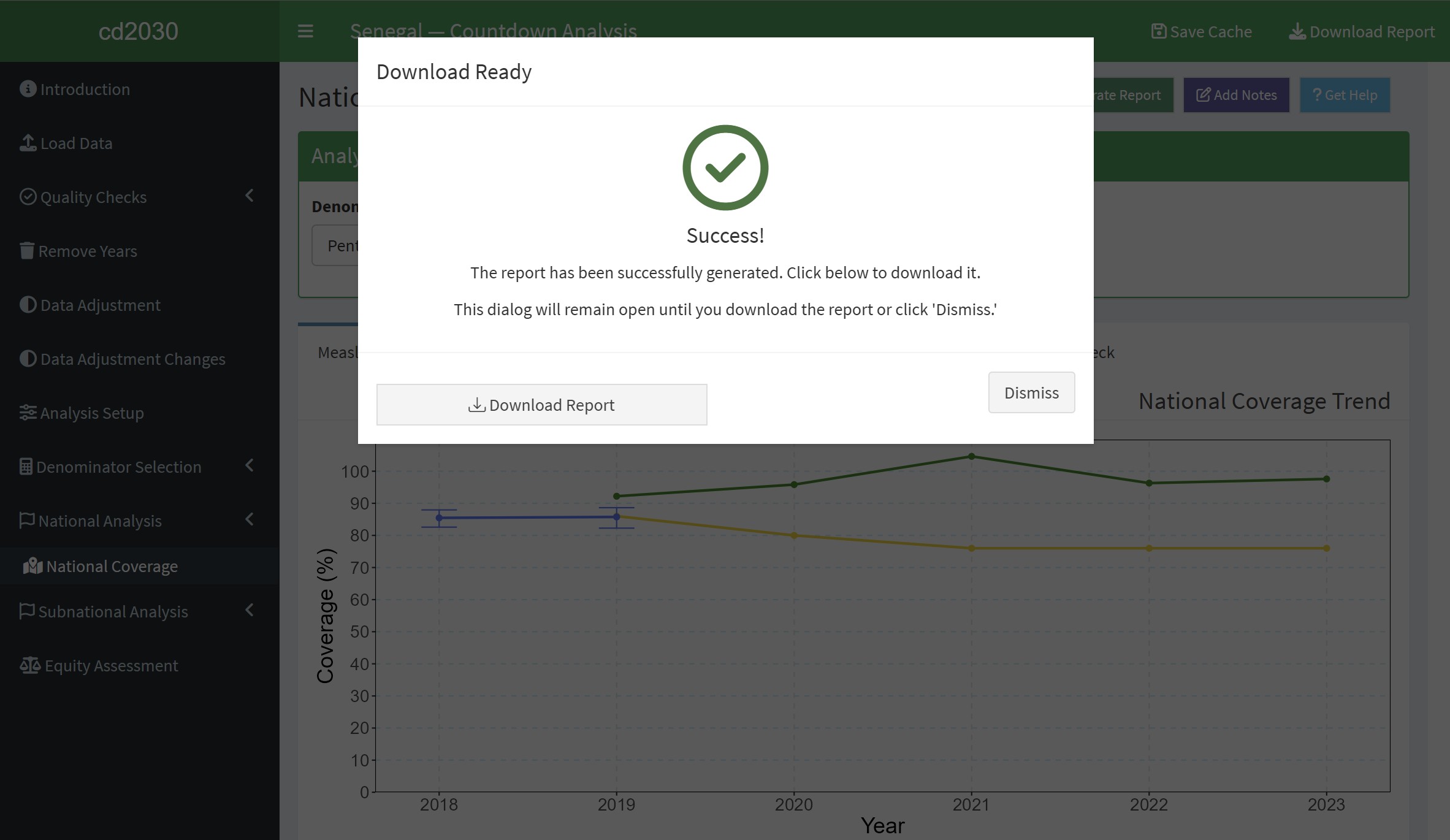
- Click the “Download Report” button to save the file to your computer.
- Alternatively, you can click “Dismiss” to close the dialog without downloading.
10.2 Best Practices
- Select the Appropriate Format:
- Choose a format that suits your intended use (e.g., Word for editing, PDF for sharing).
- Ensure Analysis is Complete:
- Verify that all necessary inputs and analyses are finalized before generating the report.
- Save the Report:
- Download and save the report immediately to avoid having to regenerate it later.
- Avoid Interruptions:
- Do not close the application or navigate away during the generation process.
10.3 Troubleshooting
- Report Generation Fails:
- Ensure all required inputs for the analysis are complete.
- Retry generating the report.
- Incorrect Format Selected:
- Regenerate the report by selecting the correct format.
- Report Not Downloaded:
- If you missed downloading, repeat the generation process.
- Loading Issues:
- If the generation process takes too long, check your internet connection or system resources.