3 App Features
This section details the main components of the cd2030 Shiny App interface: the Title Bar, Sidebar, and Main Panel (Body Content). Understanding these elements will help you navigate and use the app effectively.
3.1 Title Bar
The Title Bar, located at the top of the app, provides key information controls. The elements of the Title Bar, such as “Set Cache Directory/Save Cache” and “Download Report,” are only displayed after data has been loaded.
3.1.1 Key Elements of the Title Bar
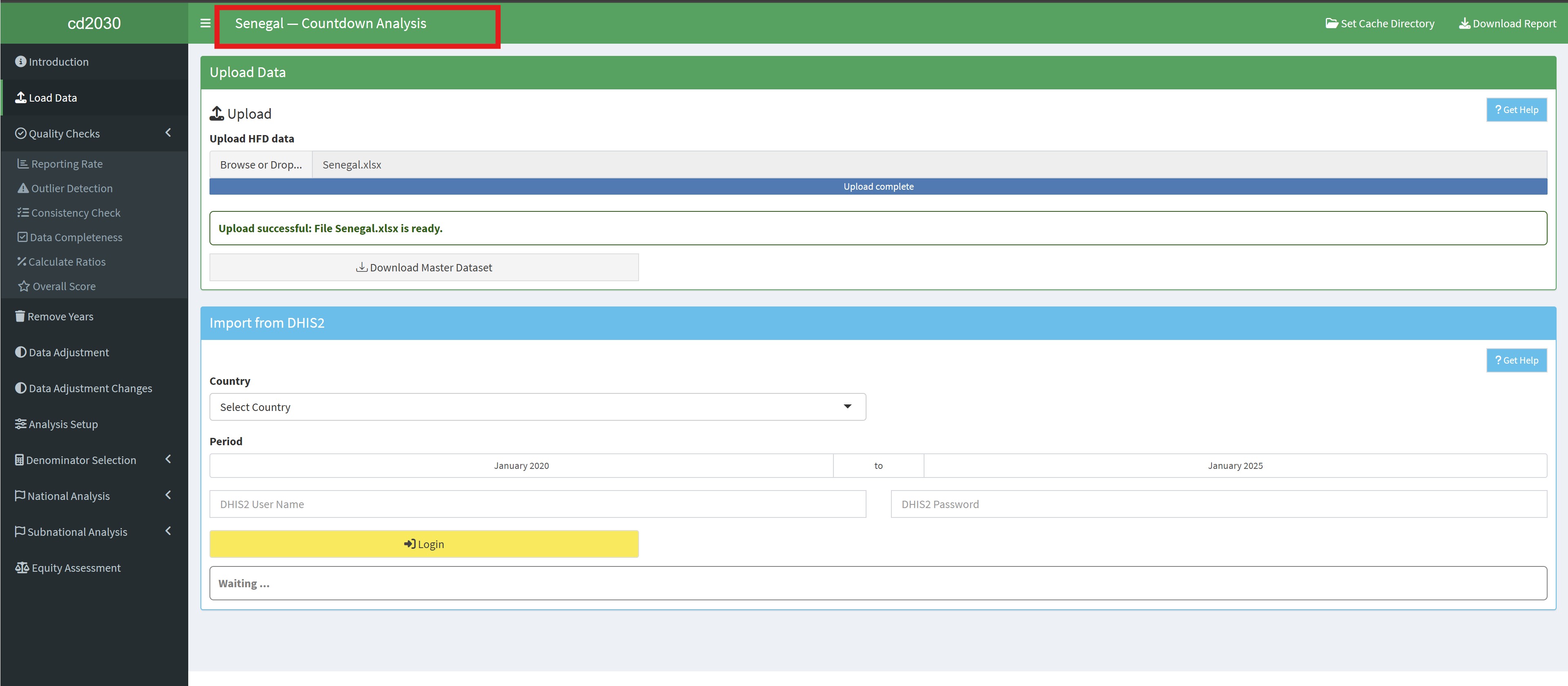
- Contextual Information: Displays the current analyssis context, such as the country of analysis (e.g., “Senegal - Countdown Analysis”).
- Cache Management
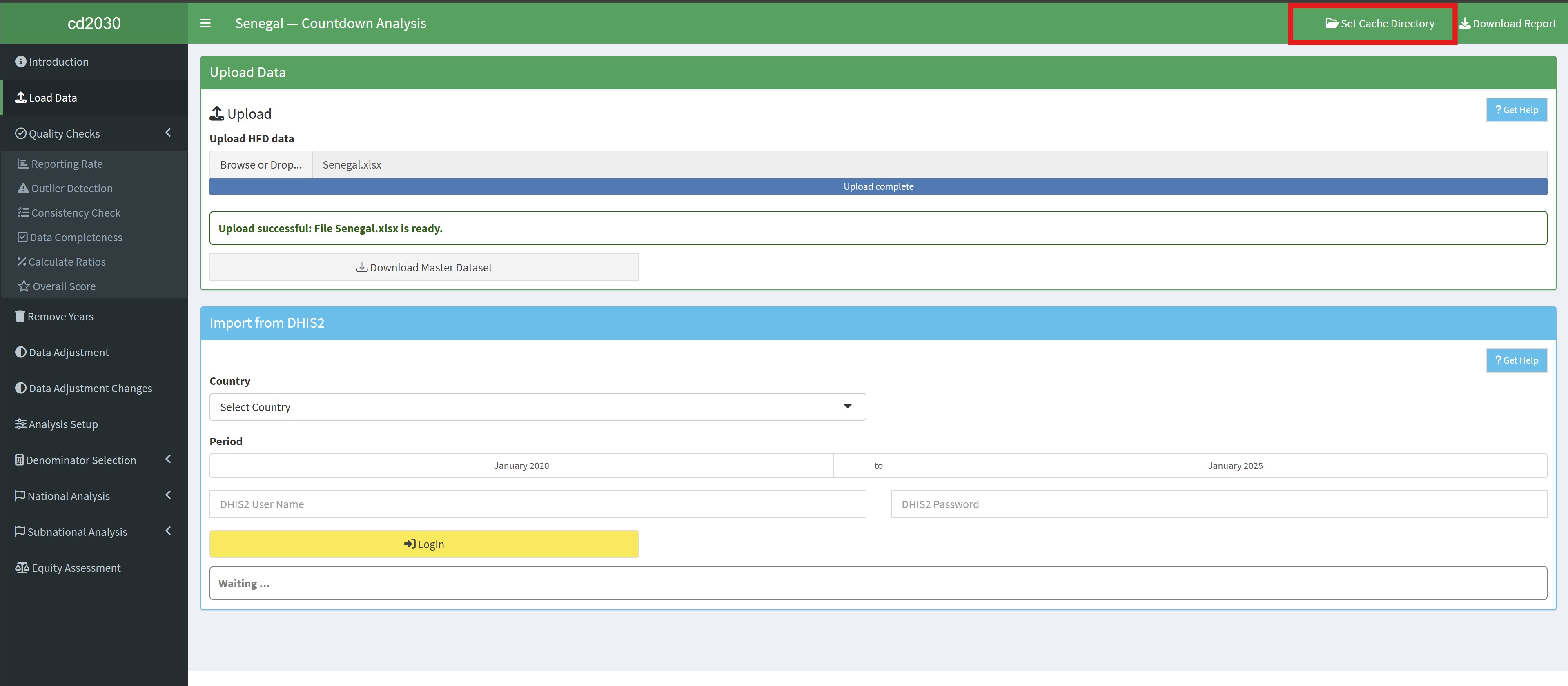
- Set Cache Directory: This button allows you to specify a directory for saving intermediate results and progress.
- Save Cache: This button allows you to save the progress of your analysis. This is useful for large analyses or for resuming a session later.
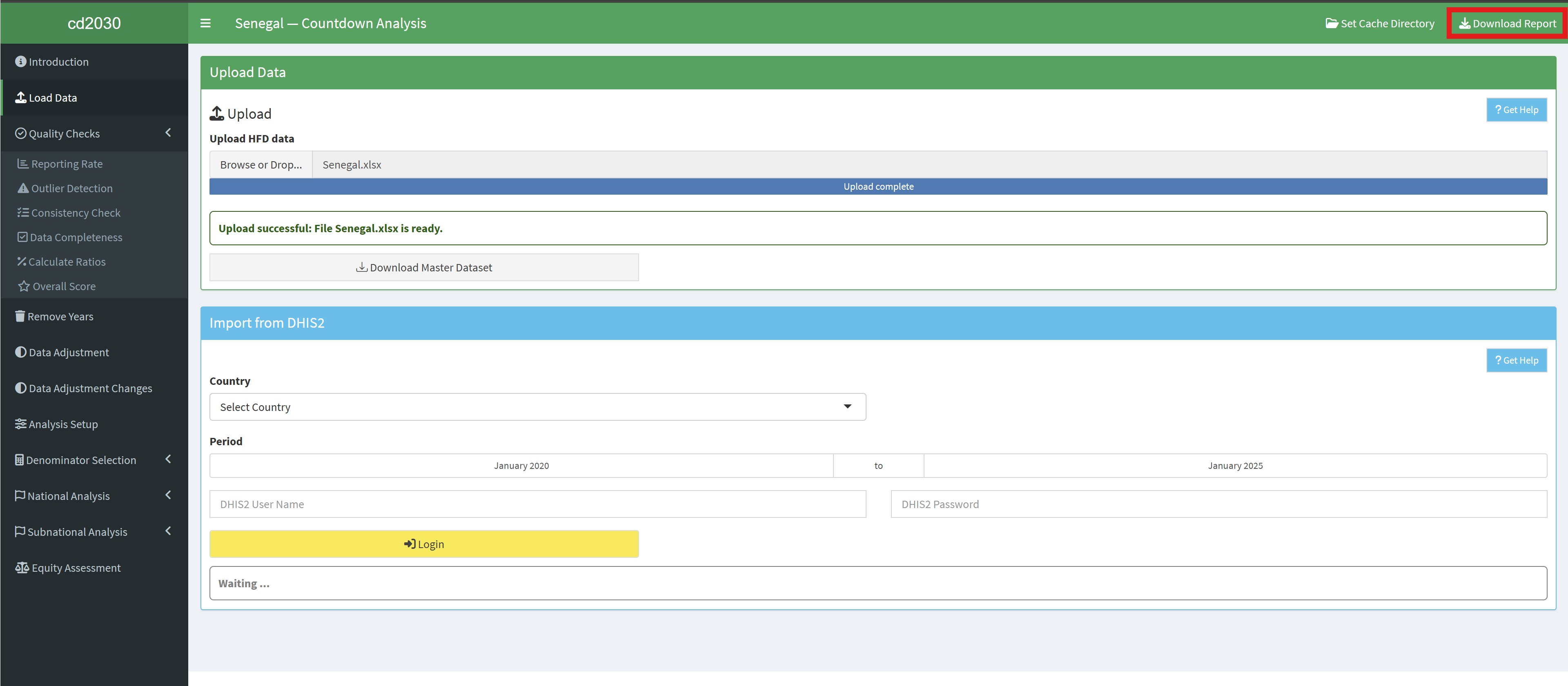
- Download Report: This button allows you to generate the final report. The available download formats are Word and PDF.
3.2 Sidebar
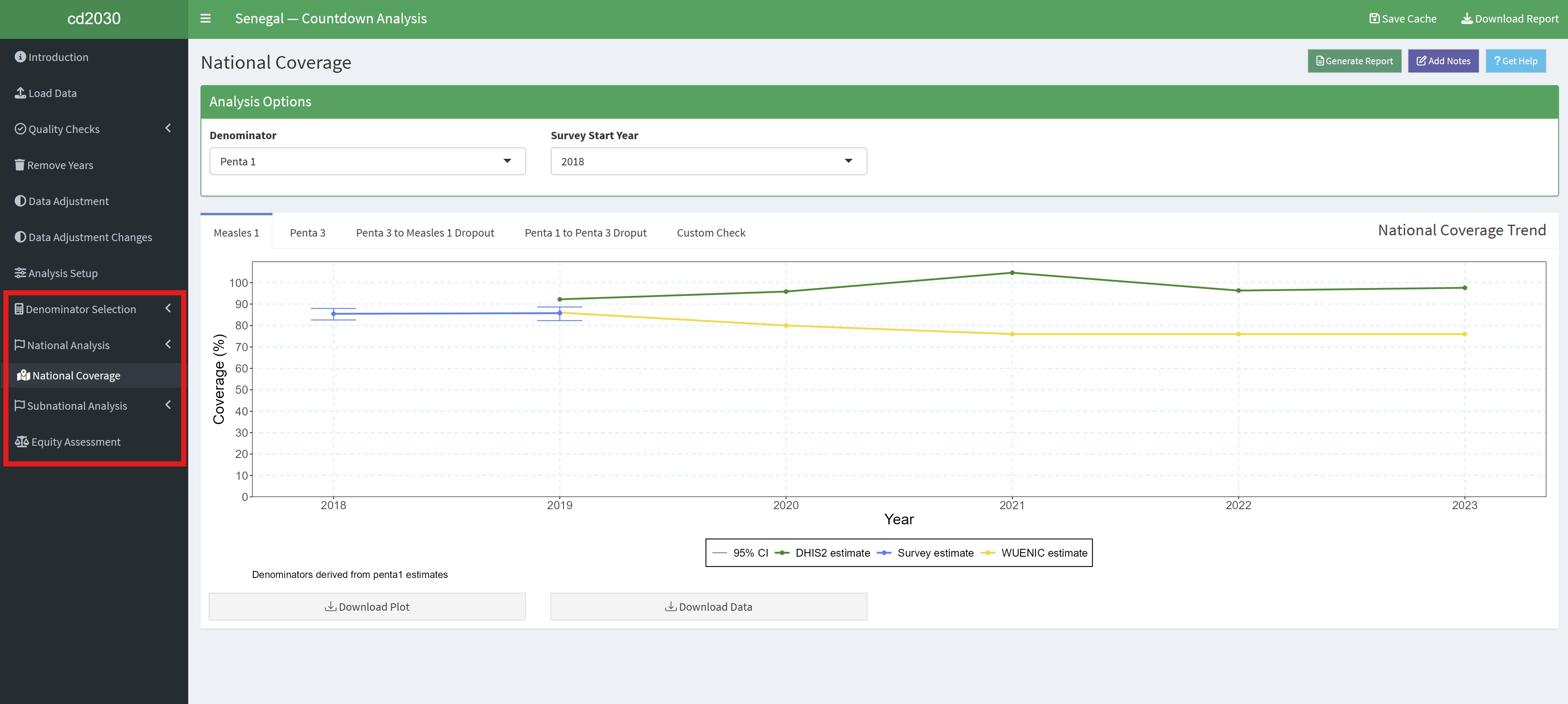
The Sidebar, located on the left side of the app, provides navigation through the analysis workflow. The sections are arranged sequentially to guide you through the process.
3.2.1 Sidebar Navigation
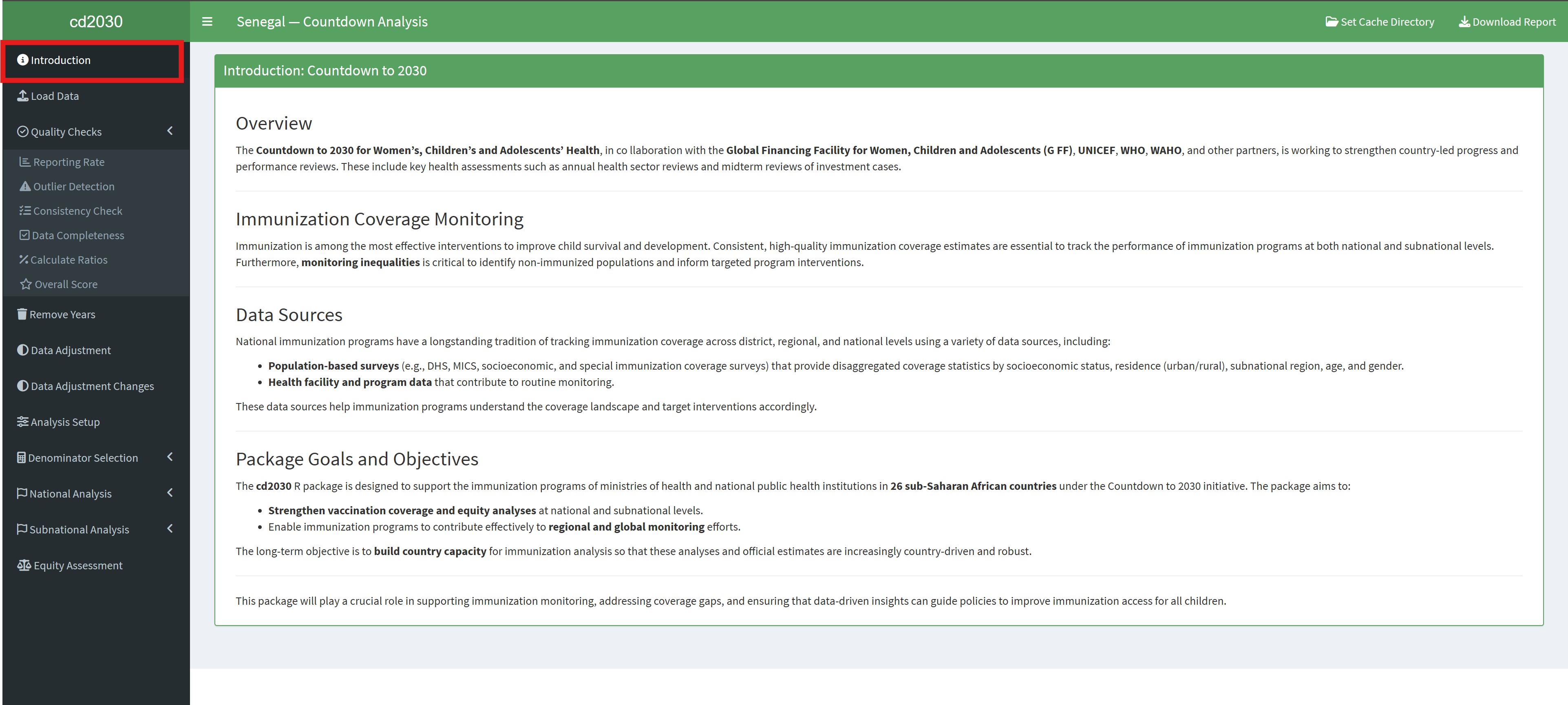
- Introduction: Provides a brief overview of the app’s purpose and functionality.
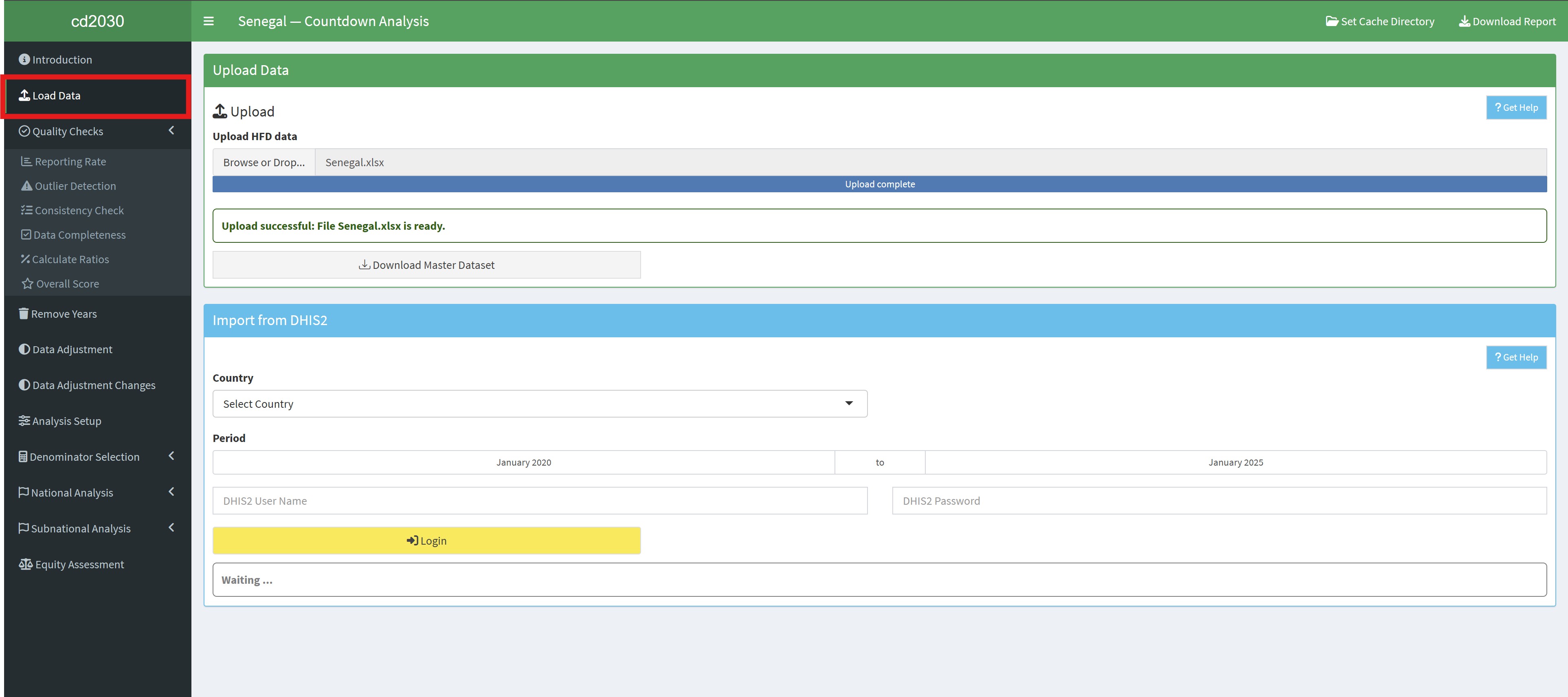
- Load Data: Allows you to upload and manage your datasets (e.g. Health Facility Datasets, Master datasets, and cache file). It also allows you to download data diretly from the DHIS2 instance.
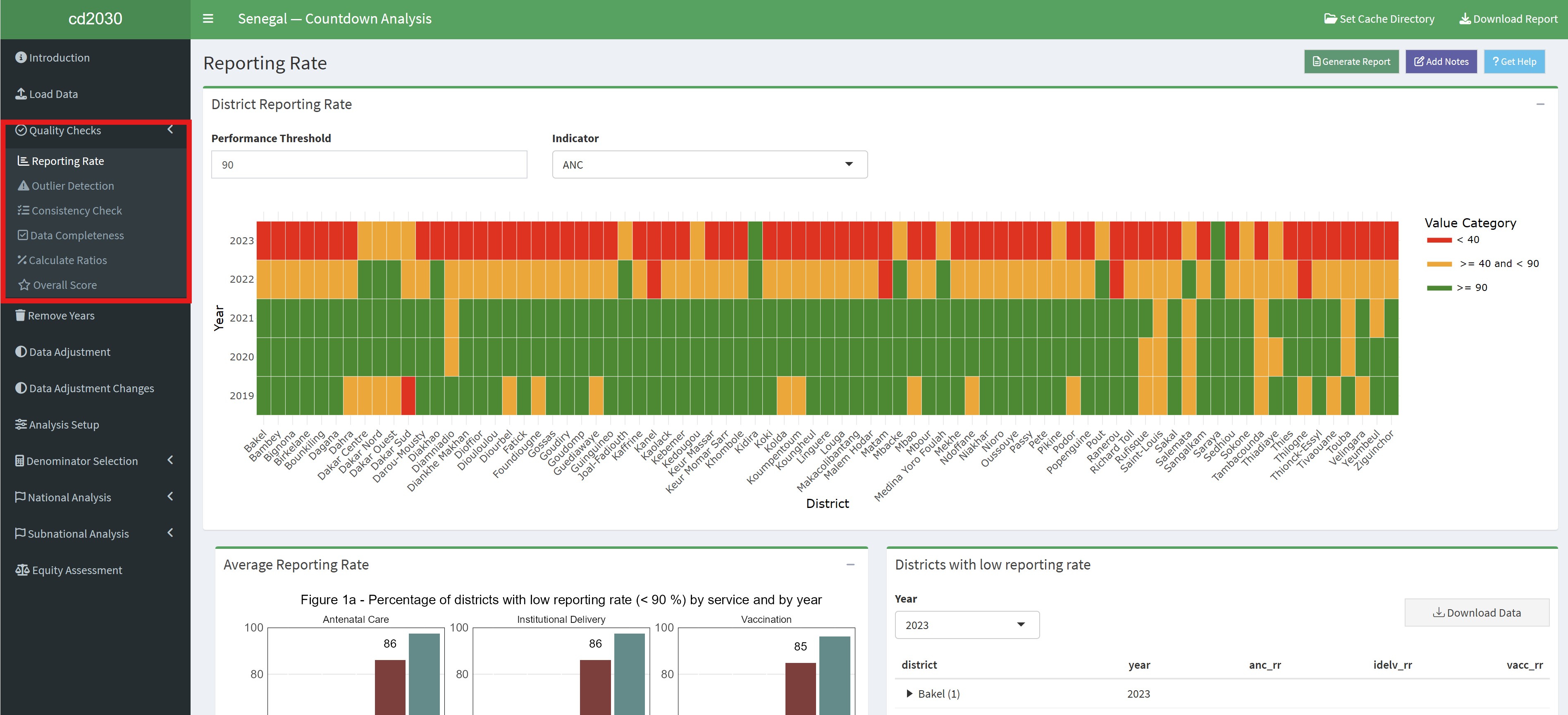
- Quality Checks: Provides tools for assessing data quality, include checks for consistency, completeness, and outliers. Subsections include:
- Reporting Rate
- Outlier Detection
- Consistency Check
- Data Completeness
- Calculate Ratios
- Overall Score
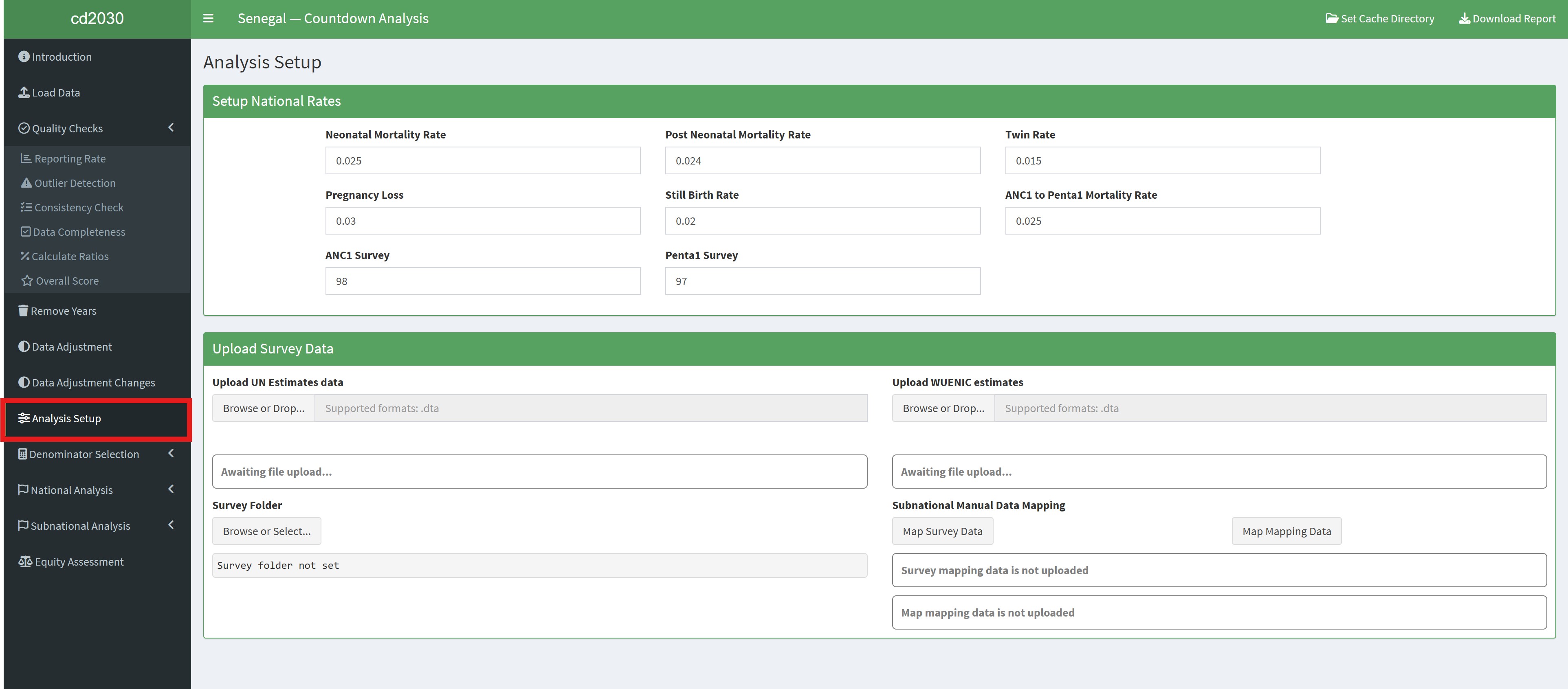
- Analysis Set-up: Allows you to configure the analysis by selecting the data sources (UN Estimates, WUENIC estimates, and survey data). It also allows you to map the sub-national survey and mapping data to the uploaded data.
- National and Sub-national Analysis: Provides tools for analysing coverage and equity at both the national and sub-national levels. This pages are only active after completing the “Analysis Set-up” section.
3.3 Main Panel(Body Content)
The main panel is the central workspace where the analysis result, visualizations, and interactive elements are displayed.
3.3.1 Key Elements of the Main Panel
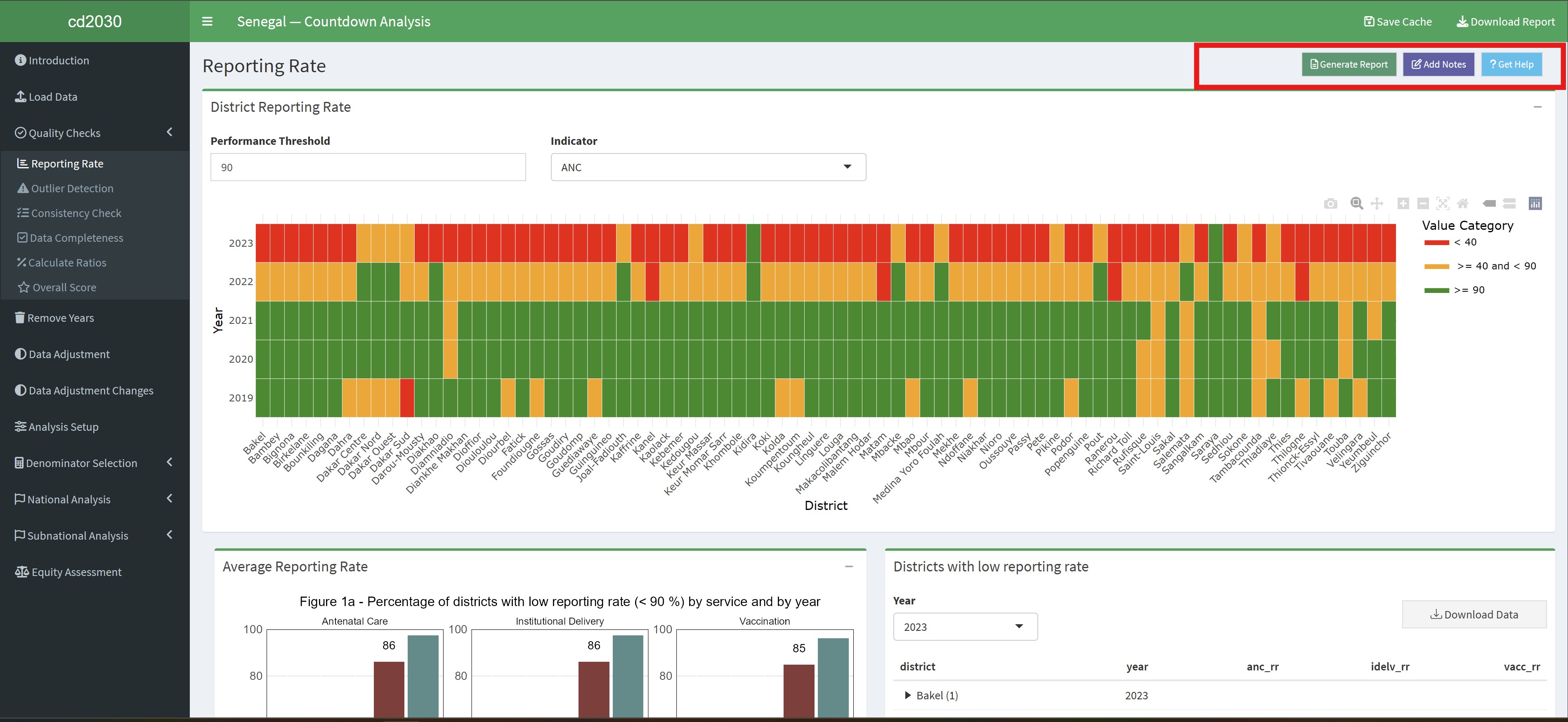
- Page Title: Displays the current module or analysis step (e.g., “Reporting Rate”).
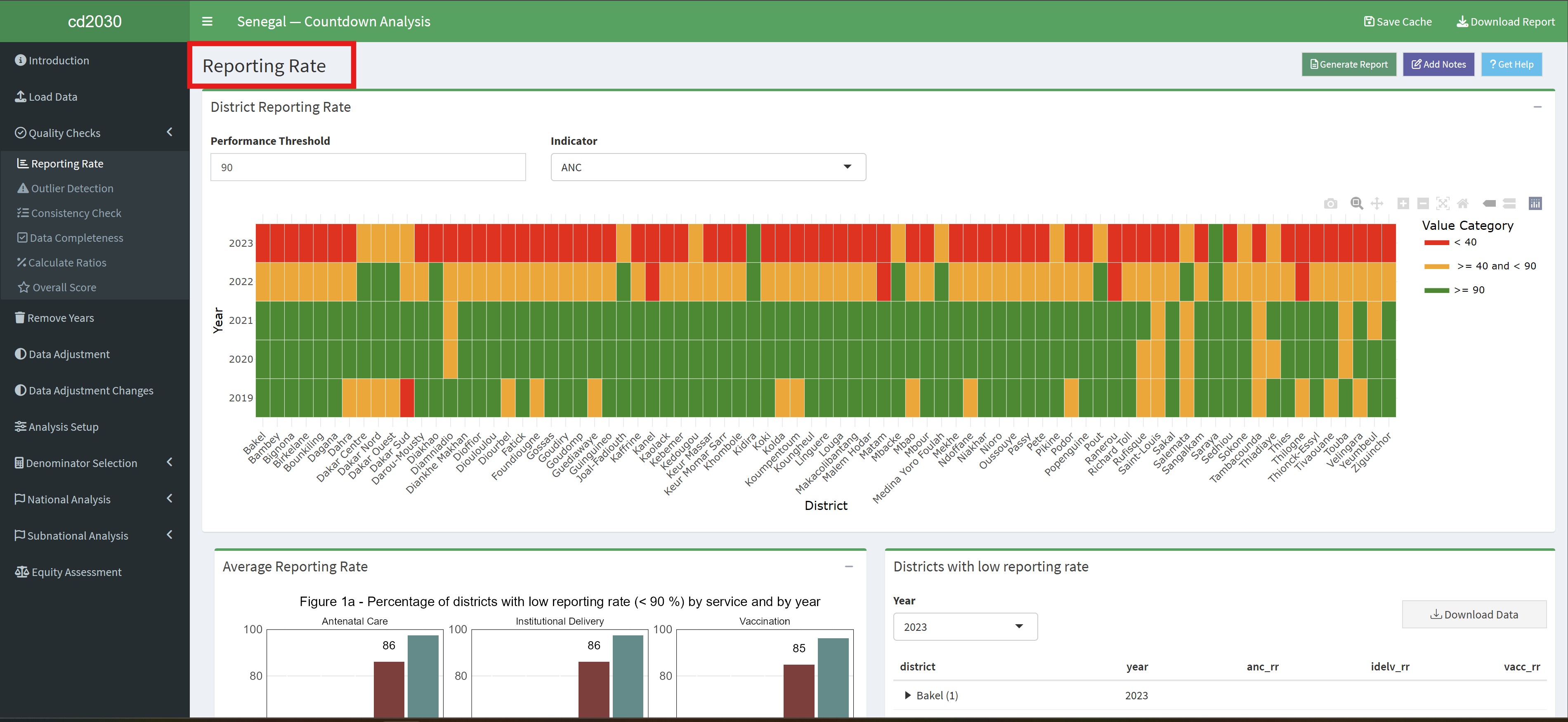
- Action Buttons: Provides context-specific actions:
- Generate Report: Downloads a report specific to the current page or analysis.
- Add Notes: Allows you to add annotations and comments directly to the results or visualizations.
- Get Help: Provides context-sensitive help and documentation for the current page.